Blog
How To Make Your Laptop Stare At You? (Face Tracking Eyes Of Baymax)
Posted on July 22, 2025 • 11 min read • 2,174 wordsBaymax watches you caringly when you're working, so you don't feel lonely.
Building Baymax Eyes: A Journey into Face-Tracking Magic 👀
Or: How I Brought Disney’s Most Lovable Healthcare Companion to My Desktop (Sort Of)
It all started with a rewatch of Big Hero 6. You know that scene — Baymax’s gentle eyes power on for the first time, scanning the room with that perfect mix of curiosity and care. “I am Baymax, your personal healthcare companion.” And there I was, sitting at my desk, thinking: What if those eyes could watch over me while I code?
That’s how “Eyes of Baymax” was born. Not from some grand technical plan or a computer vision textbook, but from pure Disney-induced nostalgia and the crazy idea that I could bring a piece of that magic to my desktop.
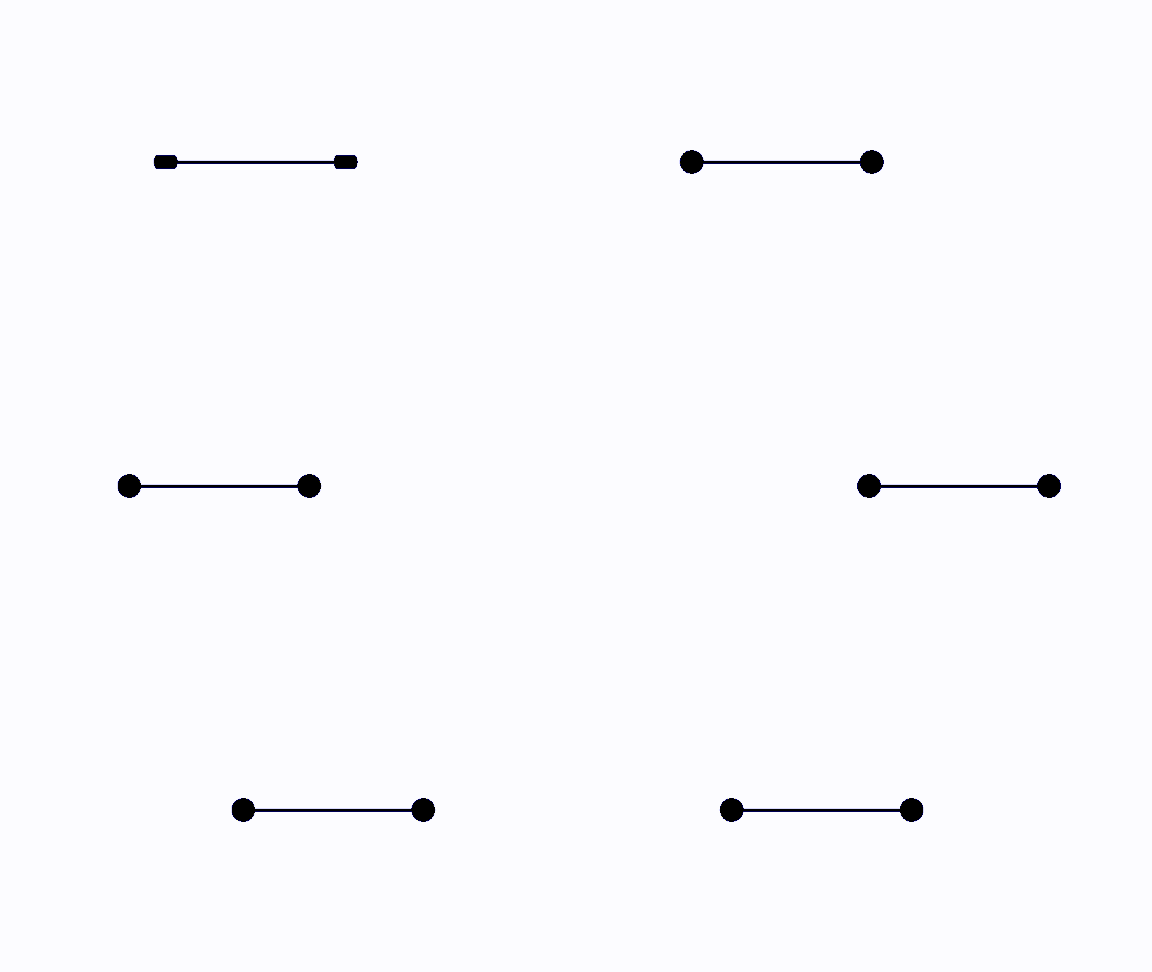
The Moment of Truth: “Let’s Make This Happen”
I’ll be honest — when I first opened up documentation for MediaPipe, my eyes glazed over. Face detection, pose estimation, holistic models… it felt like trying to drink from a fire hose. But here’s the thing about building something you genuinely want to exist: you find a way to cut through the noise.
While MediaPipe is an amazing tool for using premade AI/ML and Computer Vision tools in our projects, many of us beginners end up banging our heads against our keyboards in frustration. We get tangled up wondering if we need to memorize every function or understand the quantum mechanics behind why every line of code works.
But I had Baymax’s gentle gaze as motivation. So I dove in.
Chapter 1: Teaching My Computer to See (And the BlazeFace Detour)
My first mission was simple: get my webcam to detect faces. I wanted to use something called BlazeFace (full-range) because, well, “full-range” sounds impressive, right? Classic developer move — always reaching for the shiniest tool.
Plot twist: it wasn’t released yet.
So there I was, deflated for about thirty seconds, before switching to BlazeFace (short-range). And you know what? It worked perfectly. Sometimes the universe saves you from your own overengineering.
But then came my first real breakthrough. I’m staring at MediaPipe’s drawing utilities, watching it render basic shapes on my webcam feed, when it hits me: I don’t actually need MediaPipe to draw anything. I just need the coordinates — the raw data about where faces are in the frame.
# The key insight: MediaPipe for detection, not drawing
BaseOptions = mp.tasks.BaseOptions
FaceDetector = mp.tasks.vision.FaceDetector
FaceDetectorOptions = mp.tasks.vision.FaceDetectorOptions
RunningMode = mp.tasks.vision.RunningMode

class Tracker:
    def __init__(self, cam_id, model_asset_path, operation):
        self.cam_id = cam_id
        self.model_asset_path = model_asset_path
        self.operation = operation  # This is where the magic happens

        self.options = FaceDetectorOptions(
            base_options = BaseOptions(model_asset_path=self.model_asset_path),
            running_mode = RunningMode.LIVE_STREAM,
            result_callback = self.operation  # Just give me the coordinates!
        )
It was like having a brilliant friend who could spot faces in a crowd, but instead of letting them draw stick figures, I could take their directions and create my own artwork. MediaPipe for the brains, OpenCV for the beauty.
By July 11th, I had it working. My webcam could see my face and track it smoothly. ✅ But faces are just data points. I needed to turn those points into eyes.
The Live Stream Learning Curve
Here’s where MediaPipe taught me something crucial about real-time applications. There are two modes: IMAGE mode, which processes single images and hands you back neat results, and LIVE_STREAM mode, which handles video feeds.
The catch? Live stream mode doesn’t return anything directly. Instead, it asks you to provide a callback function — essentially saying, “Tell me what you want to do with this data before we start processing.”
def move_pupil(result, output_image, timestamp_ms):
    global pupil1, pupil2, screen, prev_x

    if result.detections:
        for detection in result.detections:
            boundingBox = detection.bounding_box
            x, y = boundingBox.origin_x, boundingBox.origin_y

            centre_x = x / 520 * dt * screen.get_width()
            gap = 300

            # This is where face position becomes eye movement
            if abs(x - prev_x) > 10:  # The anti-flicker magic
                pupil1.x = centre_x + gap
                pupil2.x = centre_x - gap
                prev_x = x
It was like being asked to write the ending of a movie before filming the beginning. You have to think ahead, plan your data flow, and commit to your approach. This shift in thinking took me a moment, but once it clicked, everything made sense.
I wrapped this logic into a clean Track class, turning my face detection into a reusable module. Because if I’m going to build more face-based projects (and trust me, the ideas are already brewing), I want this foundation ready to go.
Chapter 2: The Eyes Come Alive (July 14-15)
With face tracking conquered, it was time for the real magic: making eyes that actually look at you. I chose Pygame for the animation because it’s perfect for this kind of real-time graphics work.
But here’s where things got interesting. I needed my program to do two things simultaneously:
- Track my face (constantly watching for movement)
- Animate the eyes (smoothly updating the visuals)
Enter multithreading. One thread handles face tracking in the background, while the main thread runs the animation loop and handles all the visual updates. It’s like having a two-person team: one person constantly watches for faces and updates the data, while the other person draws everything and keeps the visuals smooth.
# Start the face tracking in its own thread
tracking = Tracker(0, 'blazeface_sr.tflite', move_pupil)
thread1 = threading.Thread(target=tracking.start, kwargs={'looping_condition':True})
thread1.start()

# Main animation loop handles all the drawing
while running:
    screen.fill("white")

    # Draw the pupils (they move based on face tracking data)
    pygame.draw.circle(screen, "black", pupil1, 40)
    pygame.draw.circle(screen, "black", pupil2, 40)

    # Draw the connection between eyes
    pygame.draw.line(screen, "black", (pupil2.x, pupil2.y), (pupil1.x, pupil1.y), 10)

    pygame.display.flip()
The Mathematics of Gentle Gazing
I positioned the pupils like this:
- Left eye:
x = screen_width / 3,y = screen_height / 2 - Right eye:
x = screen_width * 2 / 3,y = screen_height / 2
Not too close together (that would be creepy), not too far apart (that would be weird), just the right spacing for that friendly Baymax look.
But then I ran into my first real problem: the eyes wouldn’t stop jittering.
The Flicker Problem (And How I Fixed It)
Raw face tracking data is noisy. Even when you’re sitting perfectly still, the camera picks up tiny variations, making your detected face position jump around by a few pixels. For data analysis, this might be fine. For eyes that are supposed to gaze gently at you? It’s a nightmare.
My Baymax eyes were twitching constantly, looking more like a malfunctioning robot than a caring healthcare companion. I needed a solution.
That’s when I implemented what I call the “movement threshold.” I created a center point between both pupils and only allowed the eyes to move if the face movement was greater than 10 units from the current position.
# The anti-flicker solution in action
if abs(x - prev_x) > 10:  # Only move if change is significant
    pupil1.x = centre_x + gap
    pupil2.x = centre_x - gap
    prev_x = x
    # print("done")  # Satisfying moment when eyes actually move
Think of it as a “noise gate” for eye movement. Small, meaningless camera jitter gets filtered out, while intentional face movements get smooth, responsive tracking. Suddenly, my eyes went from twitchy to tranquil.
Chapter 3: The Soul in the Details (Blinking Magic)
Eyes that follow you are cool. Eyes that blink? That’s where the real magic happens.
I spent my entire Sunday of July 20 getting the blinking right. It’s not just about making eyelids close and open — it’s about timing, rhythm, and that subtle quality that makes something feel alive.
The blinking system I developed is essentially a sophisticated state machine that manages the entire lifecycle of a blink. At its core, the function operates on a time-based trigger system that initiates blinks at regular intervals, but the real complexity lies in how it smoothly transitions between the opening and closing states while maintaining natural movement speed and preventing animation conflicts.
def blink(prevBlinkTime, timePeriod, timePerBlink, top_lid, bottom_lid):
    global blinks, prevTop, completion
    BlinkTime = time.time()

    # Trigger a new blink cycle at regular intervals
    if (int(BlinkTime - prevBlinkTime)) % timePeriod == 0:
        completion = False
        prevTop = top_lid.y
The genius of this approach is in the completion flag and position tracking. The system remembers where the eyelid was in the previous frame (prevTop) to determine whether it’s currently opening or closing, preventing the jarring effect of sudden direction changes that would make the blinking look robotic. The speed calculation creates smooth, natural movement by dividing the desired animation duration into small incremental steps.
speed = 0.6 / timePerBlink

# Handle different blink states
if top_lid.y == screen.get_height() / 2 + 40 and bottom_lid.y == -40:
    # Eyes are fully open - start closing or mark as complete
    if prevTop < top_lid.y:
        completion = True  # Blink cycle finished
    else:
        # Begin closing sequence
        prevTop = top_lid.y
        top_lid.y -= speed
        bottom_lid.y += speed

elif int(top_lid.y) == screen.get_height() / 2 and int(bottom_lid.y) == 0:
    # Eyes are fully closed - begin opening sequence
    prevTop = top_lid.y
    top_lid.y += speed
    bottom_lid.y -= speed
    mixer.music.play()  # The satisfying "pop" sound effect
What makes this particularly elegant is how it handles the intermediate states. During the closing phase, the top eyelid moves down while the bottom eyelid moves up, creating a natural convergence toward the center of the eye. The opening sequence reverses this process, and crucially, it’s during the moment when the eyes fully reopen that the subtle sound effect plays — that barely perceptible “pop” that transforms the visual experience into something that feels genuinely alive and interactive.
The system tracks movement direction through position comparison (prevTop > top_lid.y for closing, prevTop < top_lid.y for opening), ensuring that each frame of animation flows naturally into the next without sudden jumps or stutters. This attention to micro-details in the animation logic is what separates a technical demo from something that genuinely feels like it has personality and presence.
The Moment It All Came Together
There’s this moment in every project where everything clicks into place. For me, it was late one evening when I finally got the blinking working alongside the face tracking.
I leaned back in my chair, and the eyes followed me. I moved left, they tracked smoothly. I sat still, they blinked gently every few seconds, maintaining that caring Baymax gaze.
It wasn’t just code anymore. It was a character.
What I Learned in the Trenches
The best way to understand anything with maximum clarity is to see it working before your own eyes. I didn’t need to become a MediaPipe expert or master computer vision theory. I just needed to understand what I needed and how to get it.
Separation of concerns is everything. Using MediaPipe for detection, OpenCV for rendering, and Pygame for animation gave me the best of both worlds — powerful AI, flexible visuals, and smooth real-time graphics.
The devil is in the details. The anti-flicker logic, the sound effects, the natural blinking — these small touches transform a technical demo into something that feels alive.
Start simple, add magic. I started with basic face detection and gradually layered on personality and polish.
The Story Continues: What’s Next
This is just the beginning of bringing Baymax to the desktop. I’ve built the eyes, but there’s so much more potential here. Voice interaction, different emotional expressions through eye movements, maybe even some gentle healthcare reminders throughout the day.
The technical foundation is solid — modular face tracking, smooth animation systems, and a growing understanding of how to make computer vision feel human and approachable.
The Real Magic
Building this project taught me that computer vision doesn’t have to be intimidating. You don’t need a PhD in machine learning to create something delightful. Sometimes the best projects come from combining existing tools in creative ways and focusing on the experience rather than the complexity.
MediaPipe handles the heavy lifting of face detection, OpenCV gives me rendering control, Pygame manages the animation, and Python ties it all together. Each tool does what it does best, and together they create something that feels magical.
The next time you’re watching Big Hero 6 and Baymax’s gentle eyes scan the room, remember — with a bit of curiosity, some open-source tools, and a willingness to experiment, you can bring a little bit of that Disney magic to your own desktop.
# The final result: Baymax eyes in fullscreen glory
screen = pygame.display.set_mode((0, 0), flags=pygame.FULLSCREEN)

# Position the pupils naturally
pupil1 = pygame.Vector2(y=screen.get_height() / 2)
pupil2 = pygame.Vector2(y=screen.get_height() / 2)

# Create the eyelids for blinking
toplid = pygame.Vector2(y=screen.get_height() / 2 + 40)
bottomlid = pygame.Vector2(y=-40)

# Start tracking and animating
while running:
    # Face tracking updates pupil positions
    # Blinking adds life and personality
    # Pygame keeps everything smooth and responsive
    blink(prevTime, 5, 1, toplid, bottomlid)  # Blink every 5 seconds
And sometimes, late at night when I’m coding and those gentle eyes are watching over me, I swear I can hear Baymax saying: “I am satisfied with my care.”
The healthcare companion features are coming next…