Blog
The Basics Of Hand Tracking In Python Using Mediapipe Solutions
Posted on February 12, 2025 (Last modified on June 22, 2025) • 6 min read • 1,156 wordsUnderstanding hand tracking basics for building programs like Finger Counter, Gesture Control, Hand Painter, and even a 3D Tennis game controlled with your hands.
While Mediapipe is an amazing tool for using premade AIML and Computer Vision tools in our own projects, many beginners spank their heads on their keyboard in frustration because they wouldn’t sufficiently ‘understand’ it to apply it. We often get confused if we need to by heart every step or understand the logic behind why every line of code works.
This article is not a tutorial, but it’s the narration of my first step in computer vision.
The best way to understand anything with maximum clarity is to see it working before your own eyes. To see it building, have questions, and gradually understand how the pieces fall in place. This is how this article is going to be — it’s more about learning to build rather than just focusing on the theory.
The first step is to download mediapipe and opencv-python in your computer using pip. If you are having issues with the installation, try installing Visual Studio Builds for desktop. Then move your focus to an IDE, preferably VS Code.
You are all set to code, but wait… what exactly are we going to build?
The Basic Idea
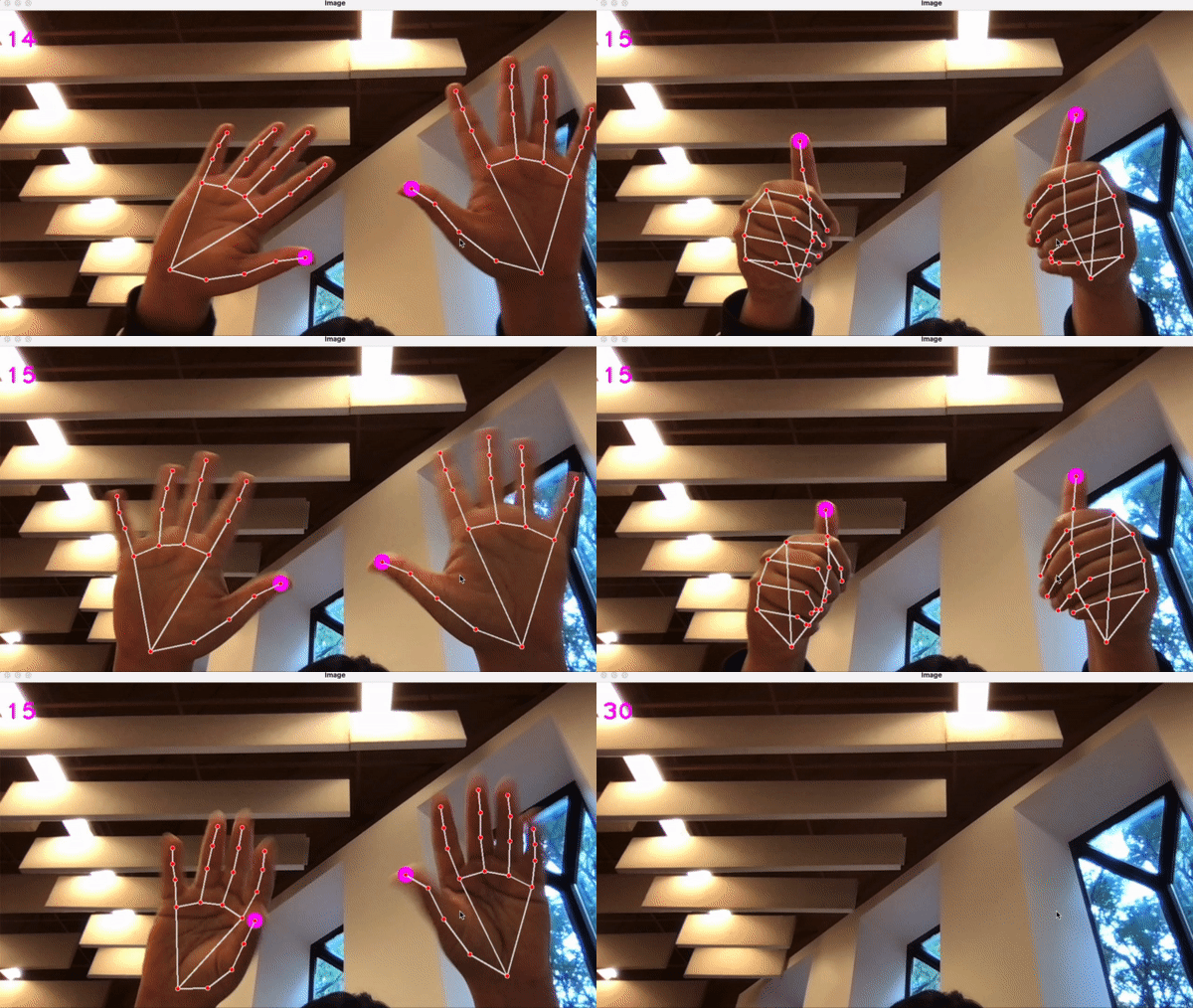
To learn hand tracking using mediapipe, we will create a project as an example. The subject of the project is to visualize and display each landmark of hand over your hand displayed on the screen. Something like this:
Algorithm
- Displaying the content of camera using opencv-python
- Detecting and reading data (coordinates) of the palm using mediapipe
- Drawing the landmarks on palm
- Pointing only one specific landmark
Displaying The Content Of Camera
- Displaying the content of camera using opencv-python
# importing opencv-python and mediapipe
import cv2
import mediapipe as mp

# setting up the target camera
camera = cv2.VideoCapture(0)

while True:
    # capturing the frame
    success, frame = camera.read()
    frame = cv2.flip(frame, 1)

    # displaying every frame one by one
    windows_name = "Live Preview"
    cv2.imshow(windows_name, frame)
    cv2.waitKey(1)
To Know
-
cv2.VideoCapturesets the target camera. Changing the integer input for it changes it. For default camera, inputcv2.VideoCapture(0) -
camera.read()puts each frame captured into a variableframeas a multidimensional NumPy array and stores the status insuccessvariable. -
cv2.flip(frame, 1)flips theframearound the y axis. If the second parameter is given0, it will flip around x axis and if it is given-1, it will flip around both the axis. -
cv2.waitKey(1)waits for you to press a key to continue to the next frame, but just for one millisecond. This line of code keeps the frames per second (FPS) consistent.
Reading Coordinates Of The Hand
Once we know how to display the content of webcam to our screen, we will then use mediapipe solutions to get the actual data required for tracking of hands.
import cv2
import mediapipe as mp

# setting up the target camera
camera = cv2.VideoCapture(0)

# setting up hand tracking solution from mediapipe
mpHands = mp.solutions.hands
hands = mpHands.Hands()

while True:
    # capturing the frame
    success, frame = camera.read()

	# converting the frame into RGB
	frameRGB = cv2.cvtColor(frame, cv2.COLOR_BGR2RGB)

	# getting coordinates of palm landmarks
	palm_data = hands.process(frameRGB)
	multi_hand_landmarks = palm_data.multi_hand_landmarks()
	print(multi_hand_landmarks)

    # displaying every frame one by one
    windows_name = "Live Preview"
    cv2.imshow(windows_name, frame)
    cv2.waitKey(1)
To Know
-
frameRGBis the RGB version offramerequired for the smooth operation while processing the hands. -
hands.process()function takes in the frame (RGB, for better computation) and returns the data of the hand, just like that. This function is actually quite magical. -
Now you have the data required, the only thing you require, however, to somehow get the coordinates of each landmark of each hand through this data.
-
palm_data.multi_hand_landmarks()gives out a list of coordinates of landmarks, separated by the number of hands. For example:[coordinates of landmarks of one hand, coordinates of landmarks of another hand]. Point to note is that all the landmarks of one hand are considered one item in this list. To get each landmark from this list, you need to iterate more.
Drawing The Landmarks Over Hand
Mediapipe contains DrawingUtils, which is a tool given by them to visualize the result of any mediapipe vision task. The DrawingUtils solution has a draw_landmark function which takes in:
- frame
- single hand landmarks (list of coordinates of landmarks where number of items in the list is equal to the number of landmarks we have in all the detected hands)
- method used to draw (ex:
mpHands.HAND_CONNECTIONSwill draw connections between landmarks)
You saw how to get multi hand landmarks in the previous step. To get single hand landmarks, you need to iterate multi hand landmarks if it’s not None:
import cv2
import mediapipe as mp

# setting up the target camera
camera = cv2.VideoCapture(0)

# setting up hand tracking solution from mediapipe
mpHands = mp.solutions.hands
hands = mpHands.Hands()

# setting up the drawing utility from mediapipe
mpDraw = mp.solutions.drawing_utils

while True:
    # capturing the frame
    success, frame = camera.read()
    frame = cv2.flip(frame, 1)

	# converting the frame into RGB
    frameRGB = cv2.cvtColor(frame, cv2.COLOR_BGR2RGB)

	# getting coordinates of palm landmarks
    palm_data = hands.process(frameRGB)
    multi_hand_landmarks = palm_data.multi_hand_landmarks

	# drawing landmark points on the palm
    if multi_hand_landmarks != None:
        for single_hand_landmarks in multi_hand_landmarks:
            mpDraw.draw_landmarks(frame, single_hand_landmarks, mpHands.HAND_CONNECTIONS)

    # displaying every frame one by one
    windows_name = "Live Preview"
    cv2.imshow(windows_name, frame)
    cv2.waitKey(1)
Pointing At Only One Specific Landmark
If you wish to point at one specific landmark, you need to get the x and y of that landmark. You need to iterate once more on the single hand landmarks list to get each landmark and assign an id to that (id will be the number of times the loop has been iterated). Set a condition for when the loop reaches at a specific number of iterations (basically, id), draw a dot at that coordinate using cv2.circle() function.
Note: The obtained coordinates will be in the range of (0, 1). To apply it according to the dimensions of the screen, you’ll have to multiply x and y coordinates with the width and height respectively.
import cv2
import mediapipe as mp

# setting up the target camera
camera = cv2.VideoCapture(0)

# setting up hand tracking solution from mediapipe
mpHands = mp.solutions.hands
hands = mpHands.Hands()

# setting up the drawing utility from mediapipe
mpDraw = mp.solutions.drawing_utils

while True:
    # capturing the frame
    success, frame = camera.read()
    frame = cv2.flip(frame, 1)

	# converting the frame into RGB
    frameRGB = cv2.cvtColor(frame, cv2.COLOR_BGR2RGB)

	# getting coordinates of palm landmarks
    palm_data = hands.process(frameRGB)
    multi_hand_landmarks = palm_data.multi_hand_landmarks

	# pointing one specific landmark on the hand
    if multi_hand_landmarks != None:
        for single_hand_landmarks in multi_hand_landmarks:
            for id, landmark in enumerate(single_hand_landmarks.landmark):
                height, width, channels = frame.shape
                cx, cy = int(landmark.x*width), int(landmark.y*height)
                if id == 8:
                    cv2.circle(frame, (cx, cy), 7, (255, 0, 255), cv2.FILLED)

    # displaying every frame one by one
    windows_name = "Live Preview"
    cv2.imshow(windows_name, frame)
    cv2.waitKey(1)
Conclusion
And that’s it. These were the basic important things to know before using mediapipe solutions in your project. Good luck!